Applications
An Application is a fully isolated, managed instance of Chevereto.
Each Application is a fully isolated instance with its own database, networking stack, and subscription. You can manage multiple applications under a single account, making it easy to run separate projects, staging environments, or client sites independently.
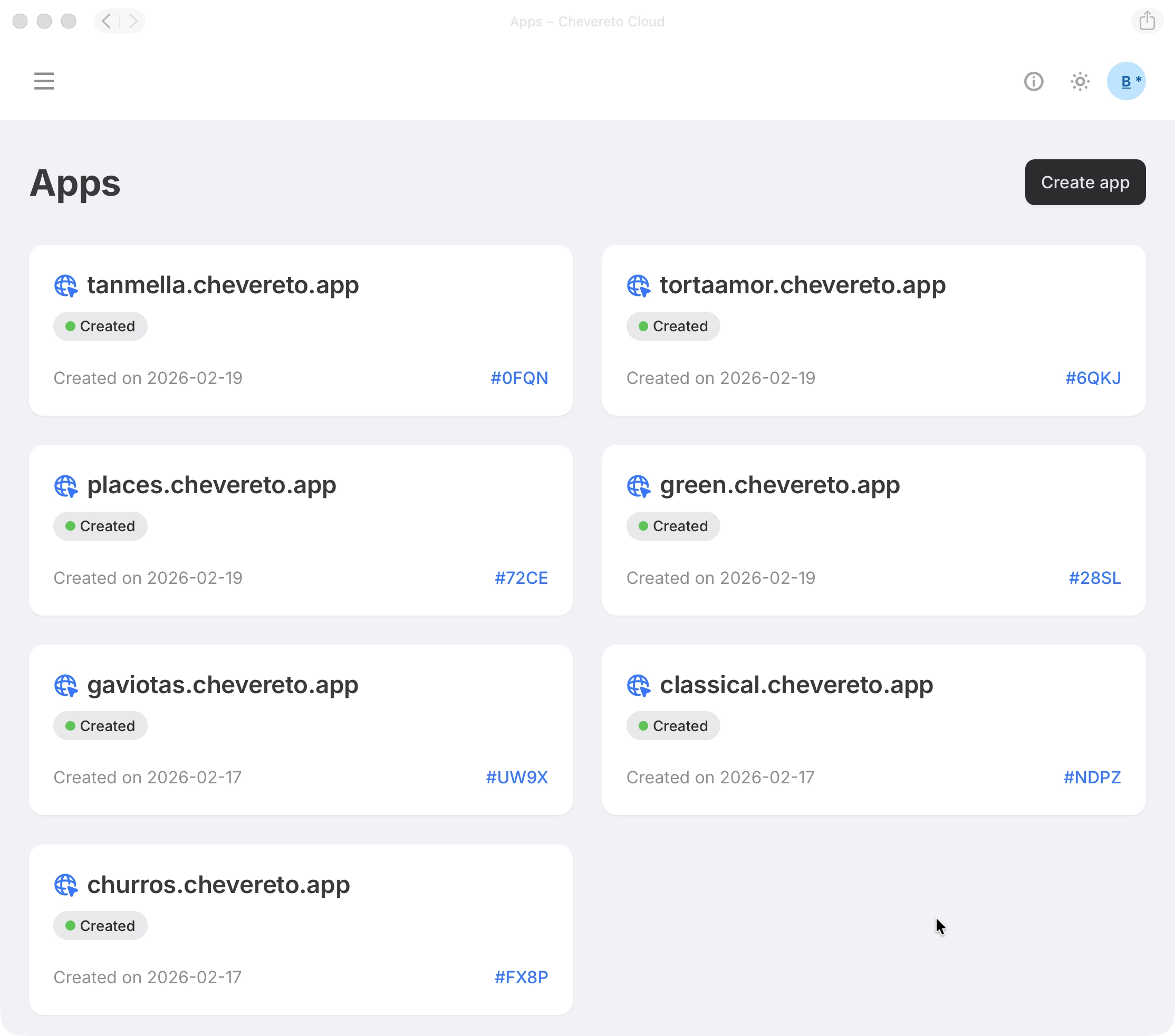
Create App
To create an App, follow these steps:
- Navigate to the Apps section Click Create app to begin the process.
- Choose plan Choose the resources that fit your current needs. You can scale your plan vertically as your requirements evolve.
- Pick a domain name Provide an unique name for your free *.chevereto.app domain. You can configure a custom domain later.
- Submit Review the details and click Start free trial / Create app button. You will be redirected to the newly created application.
- Complete checkout Finish the secure checkout flow to activate your Application.
Note: When your Application is created, the system automatically sets up an admin account for it. The admin username and password are sent to the email address associated with your account, so be sure to check your inbox (and spam folder) after completing checkout.
App Dashboard
Clicking an application from your list opens its management dashboard.
The header displays key details about your instance, including Plan, Location, Server, and Created date always visible for quick reference.
Below the header, the dashboard is divided into tabs, each covering a specific aspect of your instance:
- Metrics — performance and usage statistics.
- Settings — online status, domain, and app configuration.
- Activity Feed — recent events related to your application.
- Backup & Restore — database backups and recovery.
- Subscriptions — plan management and billing.
Metrics
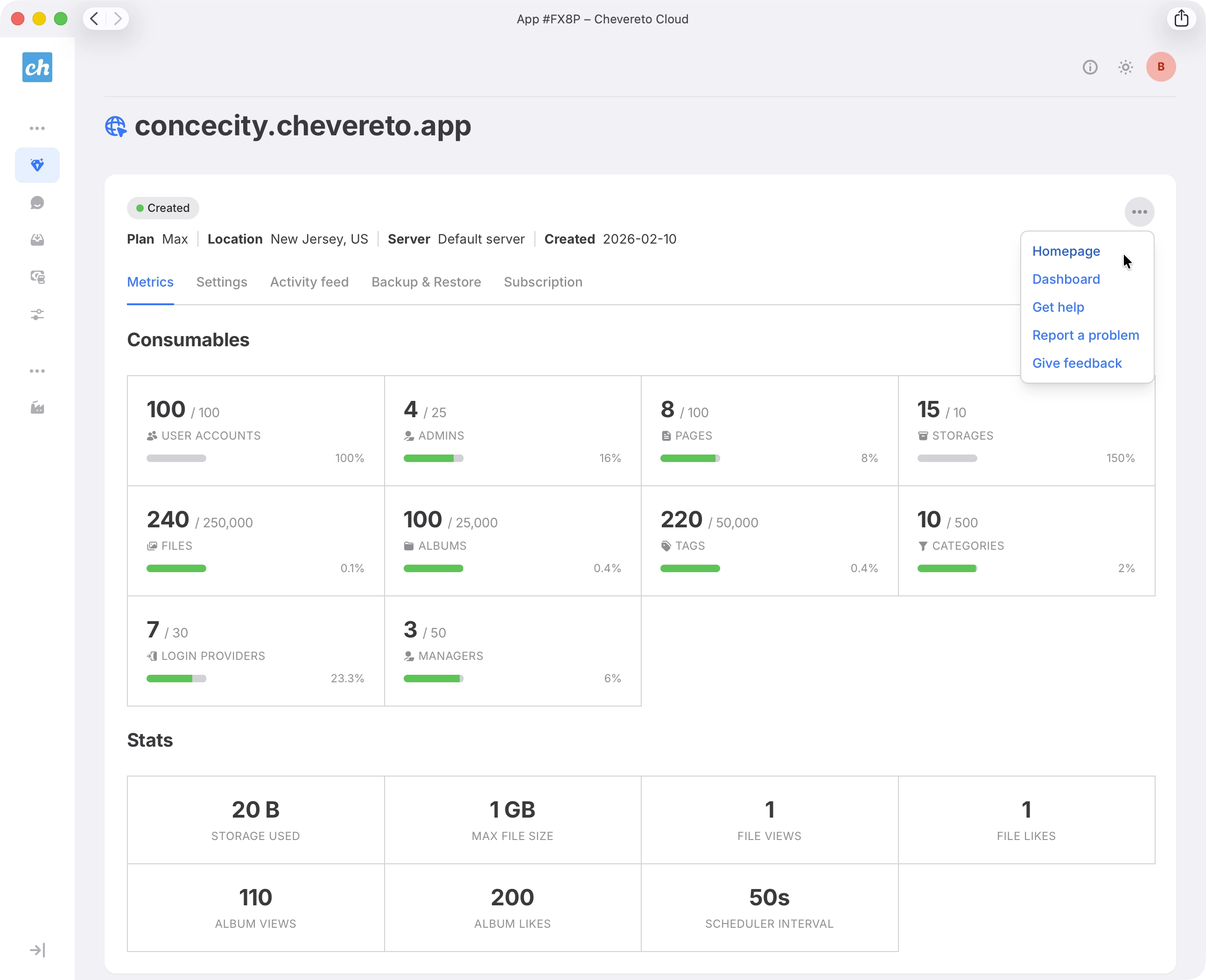
The metrics section provides an overview of your application's performance and usage through:
- Consumables — resources used by the application, such as user accounts and files.
- Stats — storage used, views, likes, and other activity metrics.
Settings
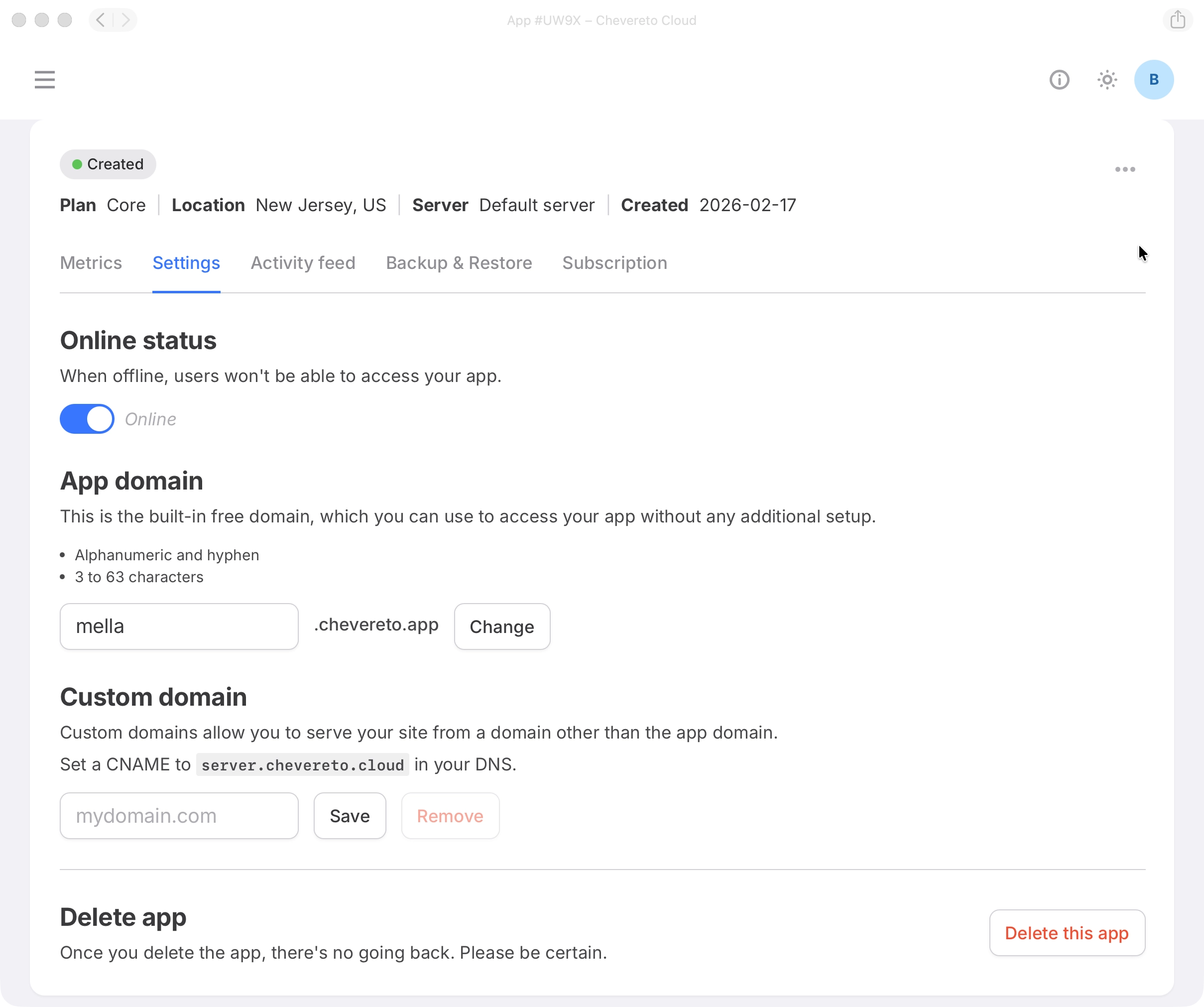
In the settings section, you can configure:
- Online status — whether your application is available to visitors.
- App Domain — the built-in application domain assigned to your instance.
- Custom domain — connect and use your own domain.
- Delete app — remove the application and terminate its subscription.
Reset User Password
You can reset the password for any user account within your application. This is useful when a user is locked out and unable to complete the standard password recovery flow.
- Open the options menu Click the three-dot menu (⋮) in the top-right corner of your application.
- Select Password Reset Choose Password Reset from the dropdown, then confirm the action.
- Enter username and new password In the modal, input the target username and optionally a new password. If you leave the password field blank, a random password will be generated.
Note: This action immediately resets the selected user's password without their confirmation. Use it only when necessary, such as verified support requests, and avoid sharing this level of access with untrusted staff.
Delete App
Deleting an application is a permanent and irreversible action. It removes the managed instance and its internal database.
Uploaded files and external storage are NOT deleted. You must manage or remove these resources directly in your storage provider's console.
The application subscription is also terminated immediately.
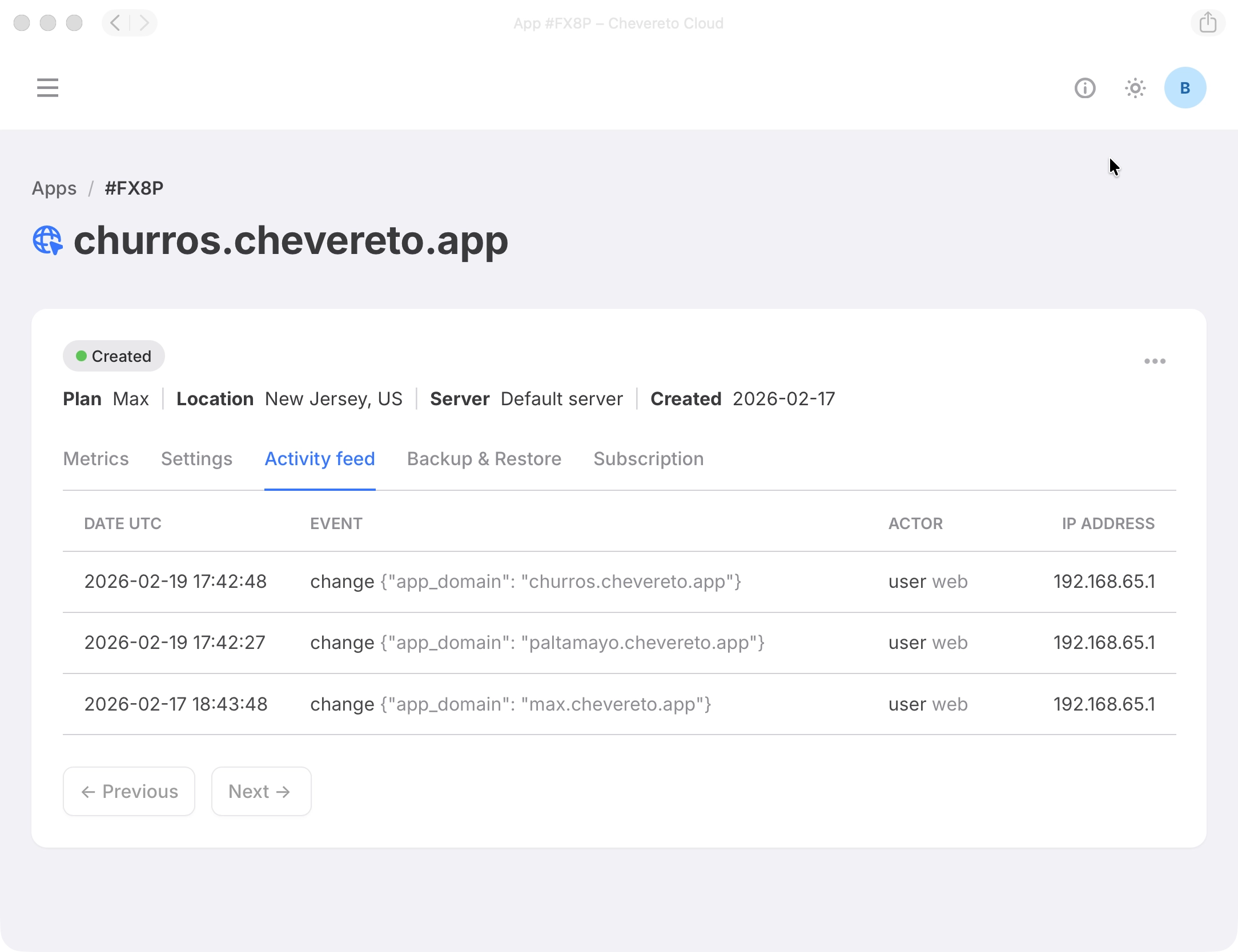
Activity Feed
The activity feed shows recent events related to your application, including the date and time of each event, the actor who triggered it, and the originating IP address.
Backup & Restore Not yet implemented
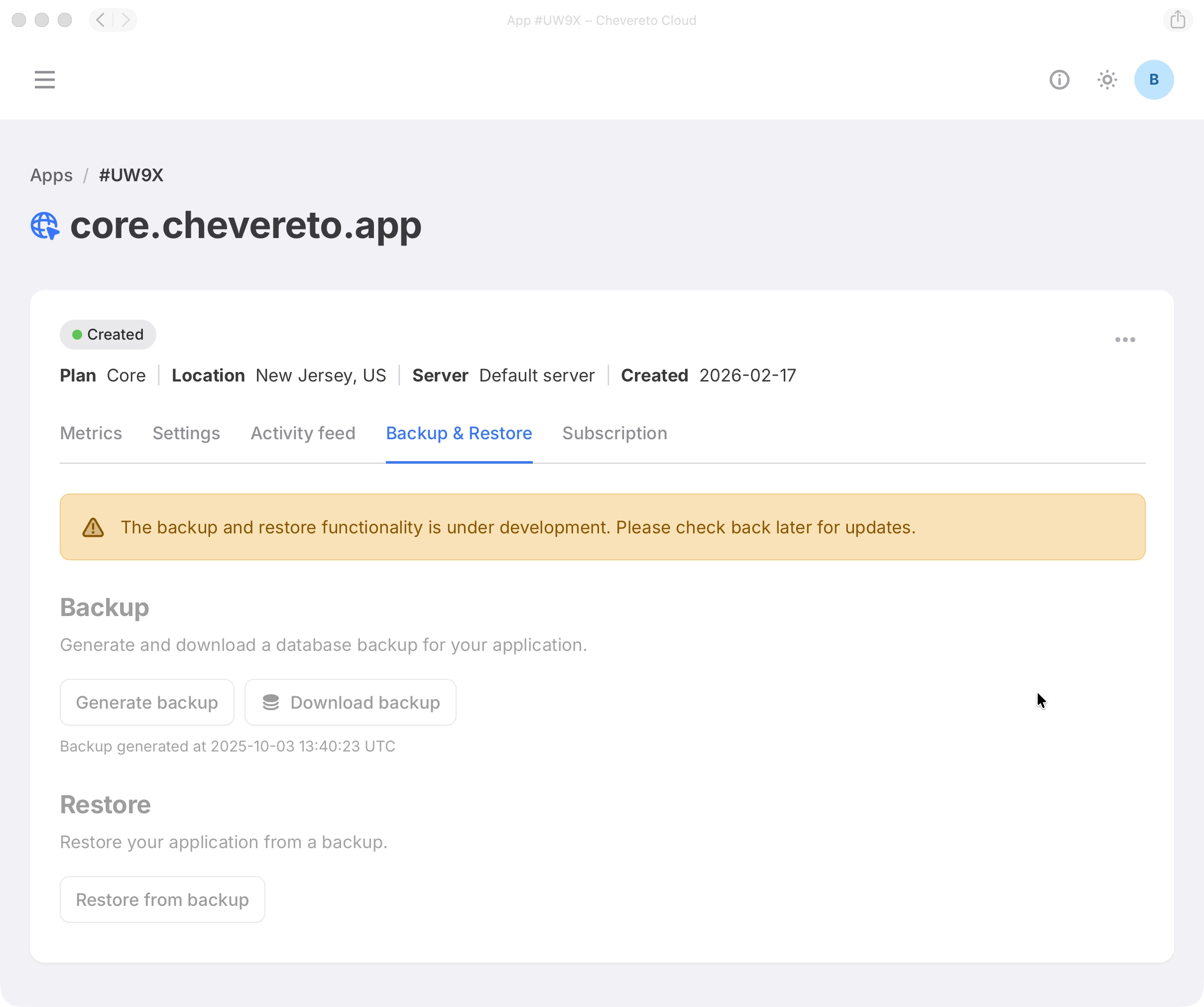
The backup and restore section allows you to create backups of your application's data and settings, and restore them when needed.
- Backup Click Generate backup and download a database backup for your application.
- Restore Select a backup file and click Restore from backup to restore your application's data.
Subscription
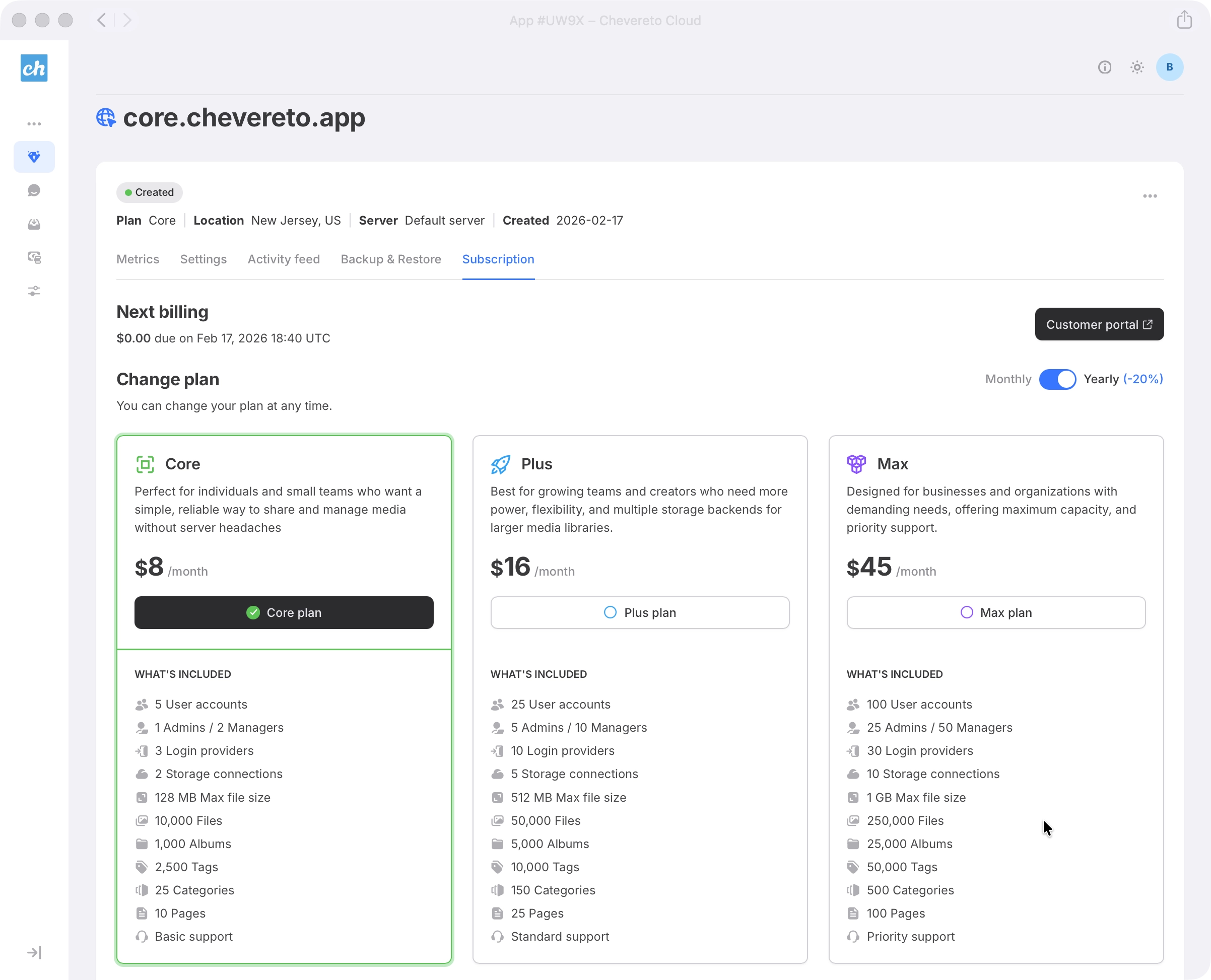
The subscription section lets you manage your application's plan.
You can upgrade or downgrade your subscription at any time, switch billing terms between monthly and yearly, and manage billing details in the customer portal.